theSimCal · User Guide
thesimcal.com · Last updated July 2026

Creating an Account & Signing In
Your centre will send you a link to its secure booking domain (for example, yourcentre.thesimcal.com). Bookmark it. The first screen you'll see is Sign In.
Which option is right for you?
- First time here? Select ‘Create account’ to register.
- Already have an account? Enter your email and password, then ‘Sign In’.
- Just booking once, or don't want an account? Choose ‘Continue as guest’. See badge 8 below for the trade-offs.
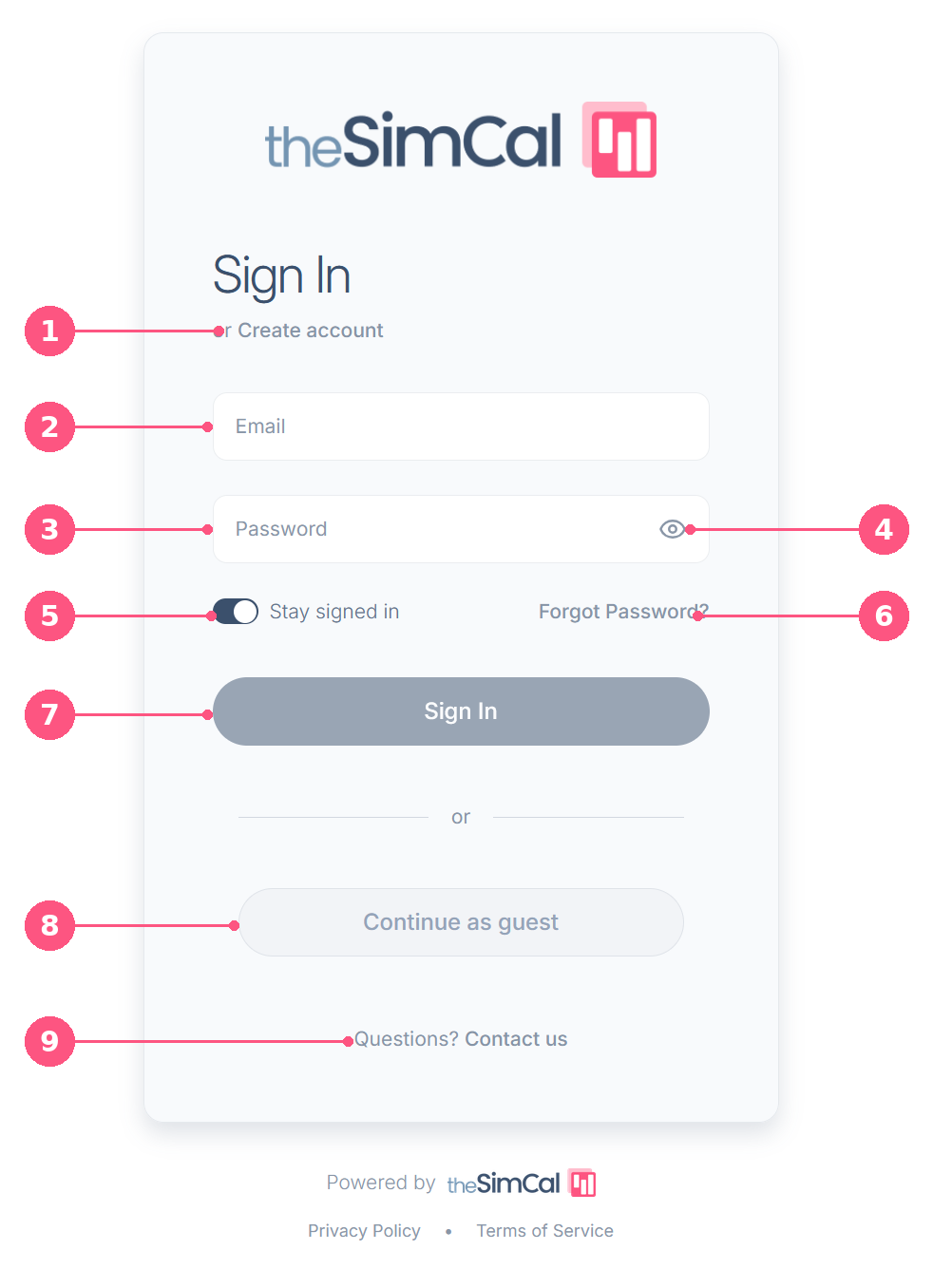
What each option does
1Create account: First-time users register here. Enter your details to set up your login. There's no email confirmation or approval step, so you can sign in straight away.
2Email: The address you registered with.
3Password: Your account password.
4Show / hide password: Select the eye icon to reveal what you've typed and check for typos.
5Stay signed in: Keeps you logged in on this device so you don't re-enter your details each visit (requires cookies enabled).
6Forgot Password?: Enter your email to receive a reset link.
7Sign In: Submits your details and takes you straight to your centre's booking calendar.
8Continue as guest: Book without creating an account. Best for a one-off request. As a guest, the form won't pre-fill with your details, and you can't track or edit your booking afterwards. Create an account if you'll book more than once.
9Questions? Contact us: Reaches your centre's team for help with access or your account.
Security tip: On a shared or public computer, leave “Stay signed in” off and sign out when you're finished.
Creating an account
- Select ‘Create account’. It's the link below the Sign In heading.
- Enter your first and last name, email address, and a password. Confirm your password, then submit the form.
- You'll be signed in automatically using your new account. No email confirmation or approval is required.
Resetting a forgotten password
- Select ‘Forgot Password?’ below the Password field.
- Enter the email address associated with your account, then submit the form.
- Open the password reset email and follow the link to create a new password. If it doesn't arrive, see ‘Trouble signing in?’ below.
Trouble signing in?
- No reset or confirmation email? Check your spam or junk folder, confirm you entered the correct email address, then contact your centre if you still don't receive it.
- Email or password not recognized? You may not have an account yet. Select ‘Create account’ or contact your centre for assistance.
Privacy Policy & Terms of Service links sit at the bottom of the screen if you'd like to review them.