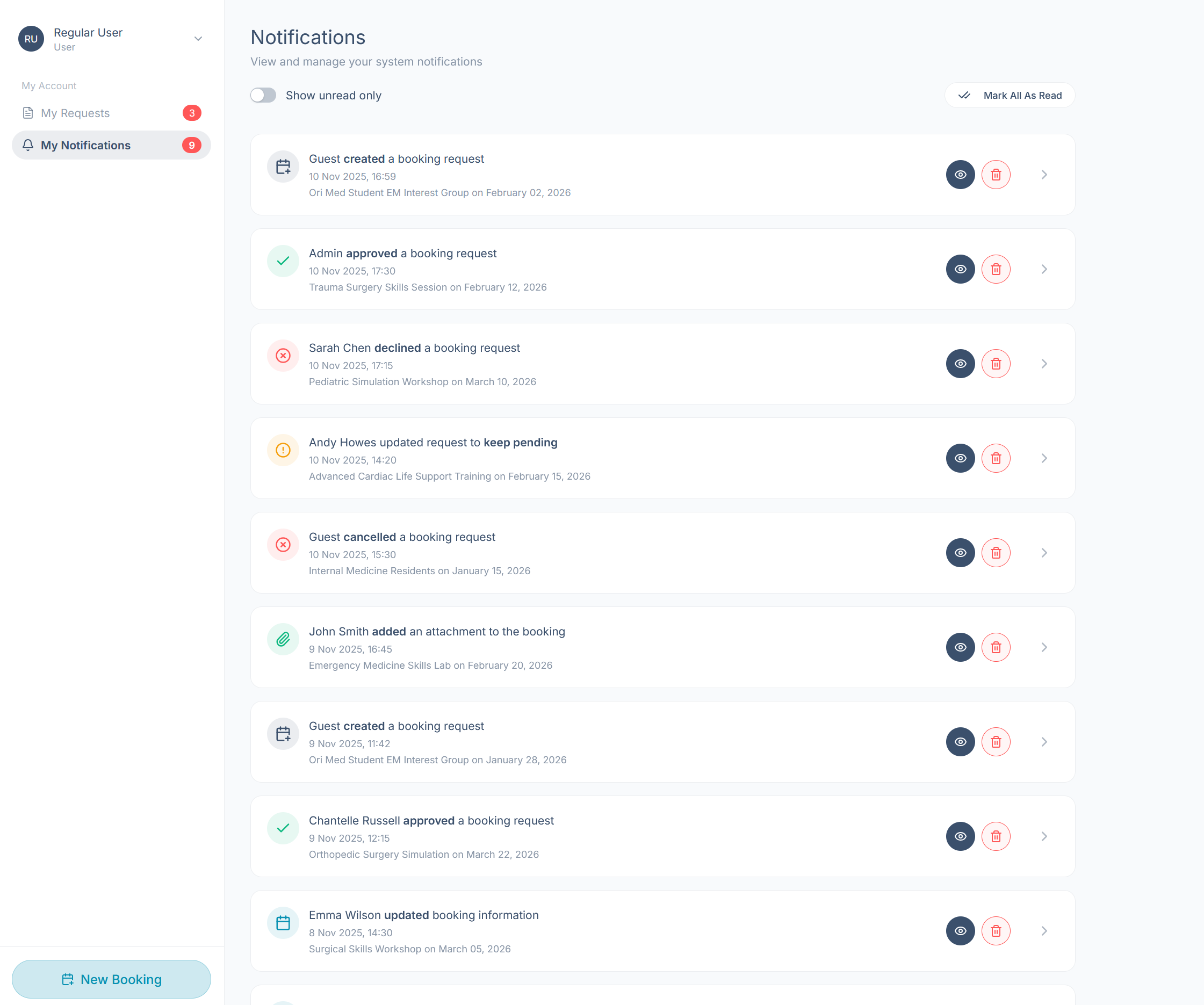
Requests & Notifications
When you're signed in, your dashboard is where you track everything you've booked. The My Account menu on the left has two sections: My Requests and My Notifications. The red badge on My Requests shows the number of new requests, and the badge on My Notifications shows the number of new changes. The New Booking button at the bottom-left starts a new request (see the ‘Submitting a Booking Request’ guide).
My Requests
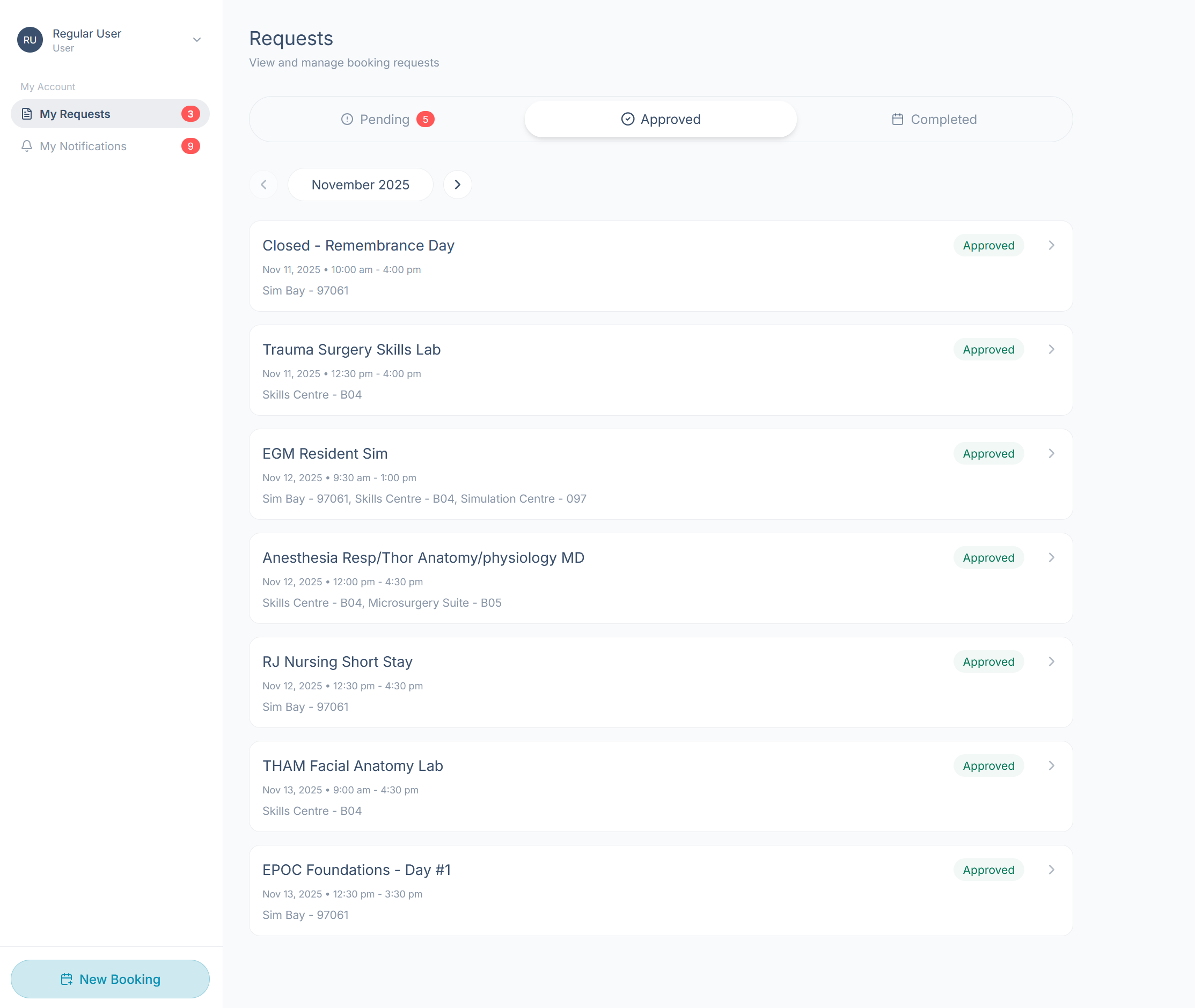
My Requests lists every booking request you've made, grouped into three tabs: Pending, Approved, and Completed. Select a tab to switch views, and select any request card to open its full details.
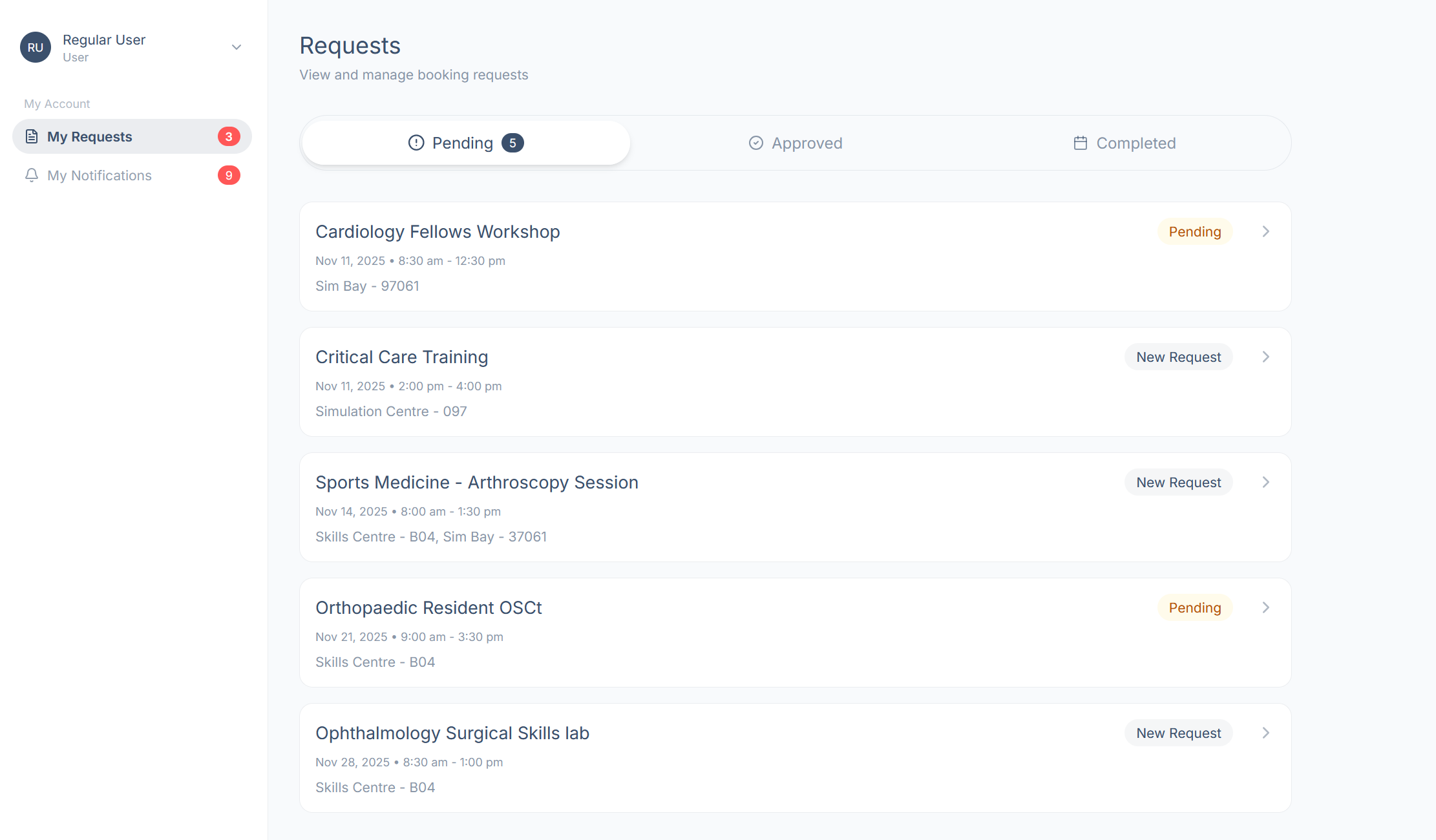
What the statuses mean
- New Request: Submitted, but your centre hasn't reviewed it yet.
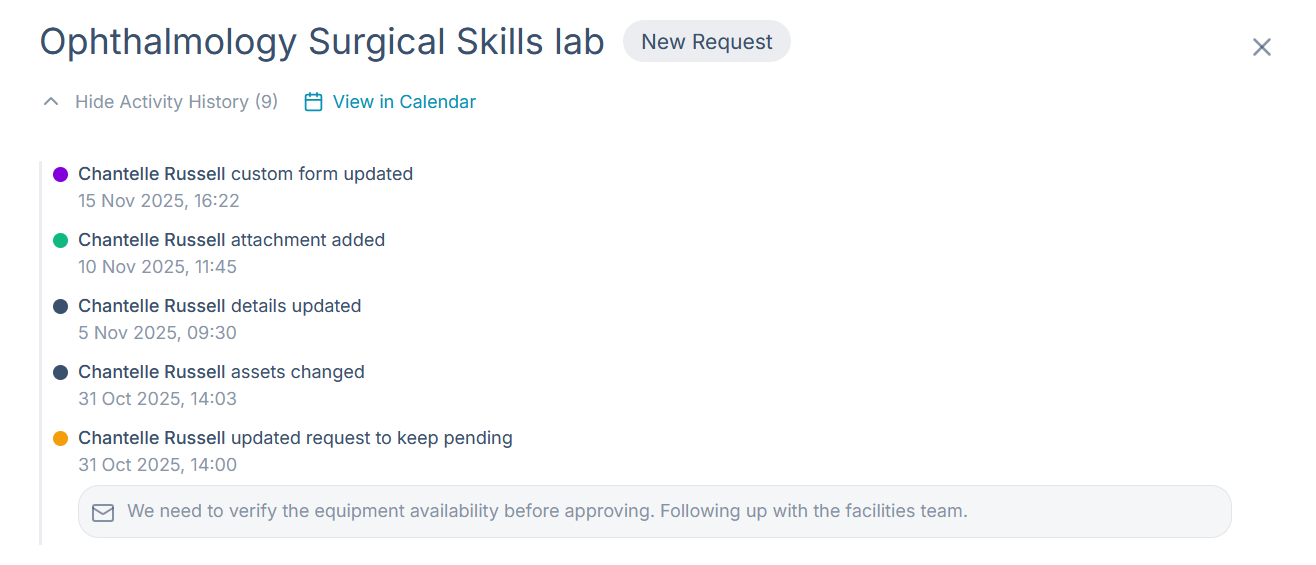
- Pending: Your centre has seen the request and it's awaiting a decision. Requests often stay pending because your centre is waiting for more information from you, so check the activity history for messages.
- Approved: Confirmed. Your session is booked.
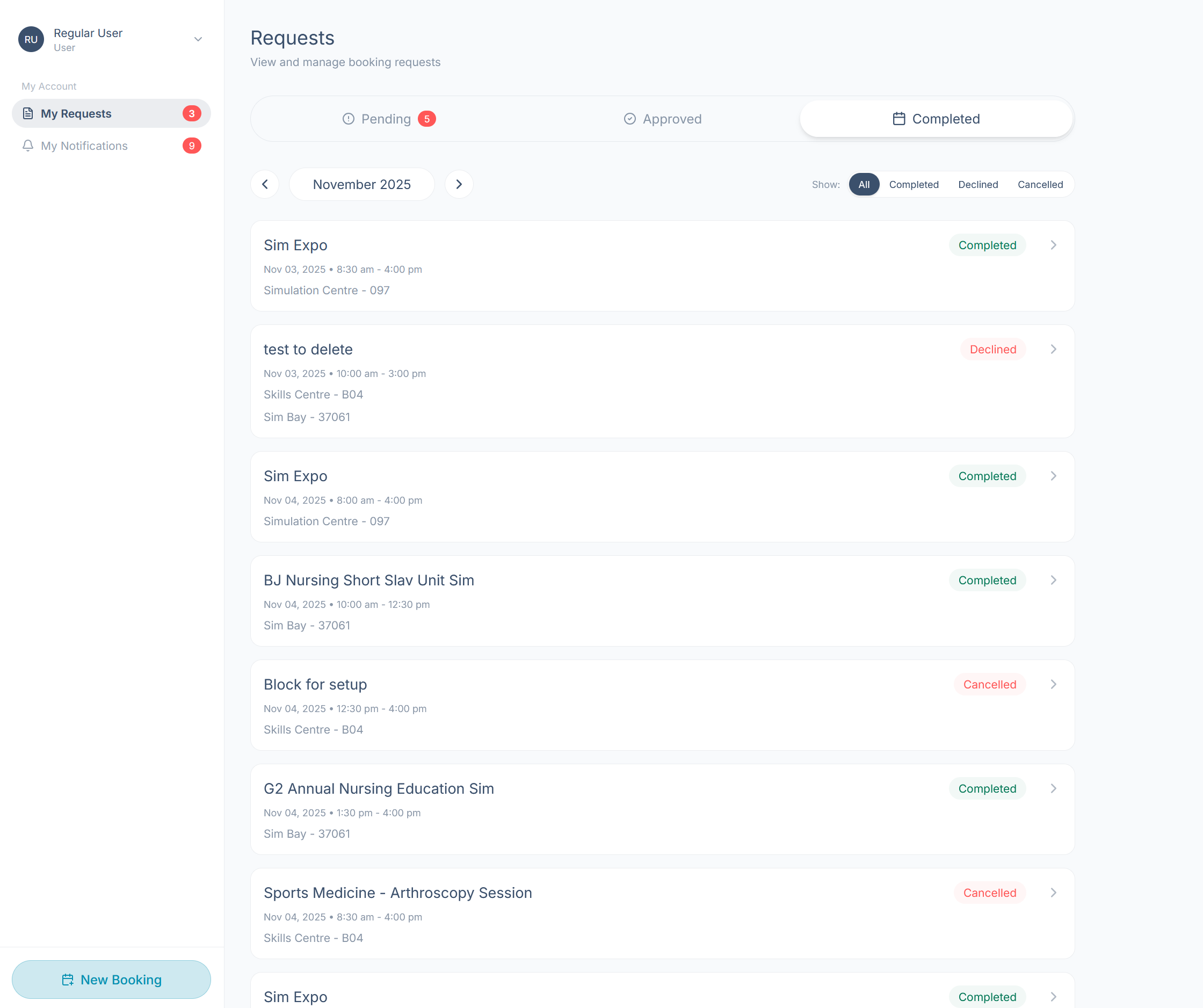
- Completed: The session date has passed.
- Declined: Your centre couldn't accommodate the request.
- Cancelled: The request was withdrawn (by you or your centre).
The Approved and Completed tabs
Both tabs are organised by month. Use the ‹ and › arrows beside the month name to browse. The Completed tab also has a Show filter so you can view All, Completed, Declined, or Cancelled requests.
Viewing a request
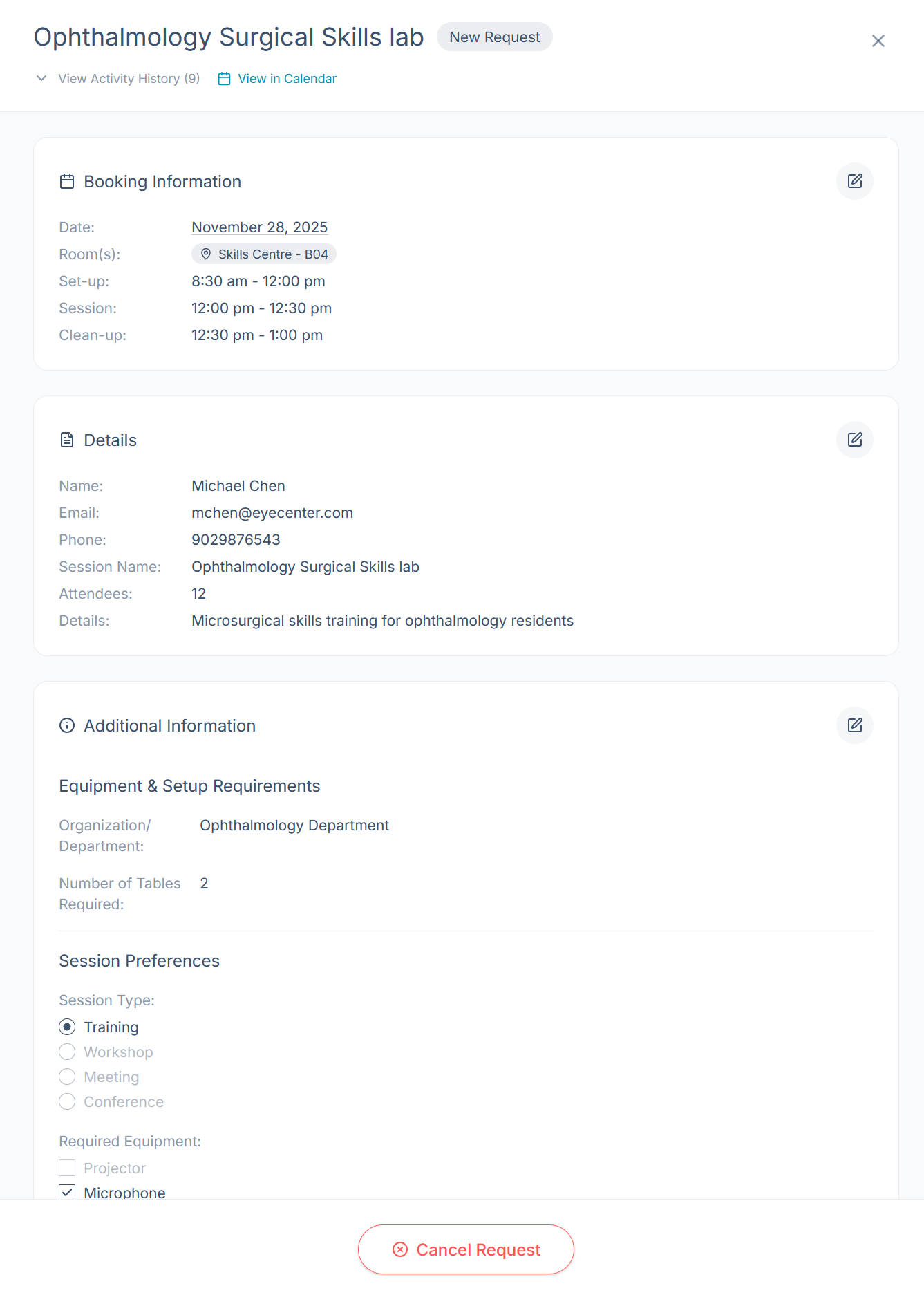
Select any request card to open its details panel. It's organised into three cards:
- Booking Information: the date, assigned room(s), and the time breakdown of set-up, session, and clean-up.
- Details: your contact information, the session name, attendee count, and session details.
- Additional Information: your centre's custom questions.
From the panel header you can select ‘View Activity History’ to expand a timeline of everything that has happened to the request. To withdraw the request entirely, select ‘Cancel Request’ at the bottom of the panel.
Editing a request
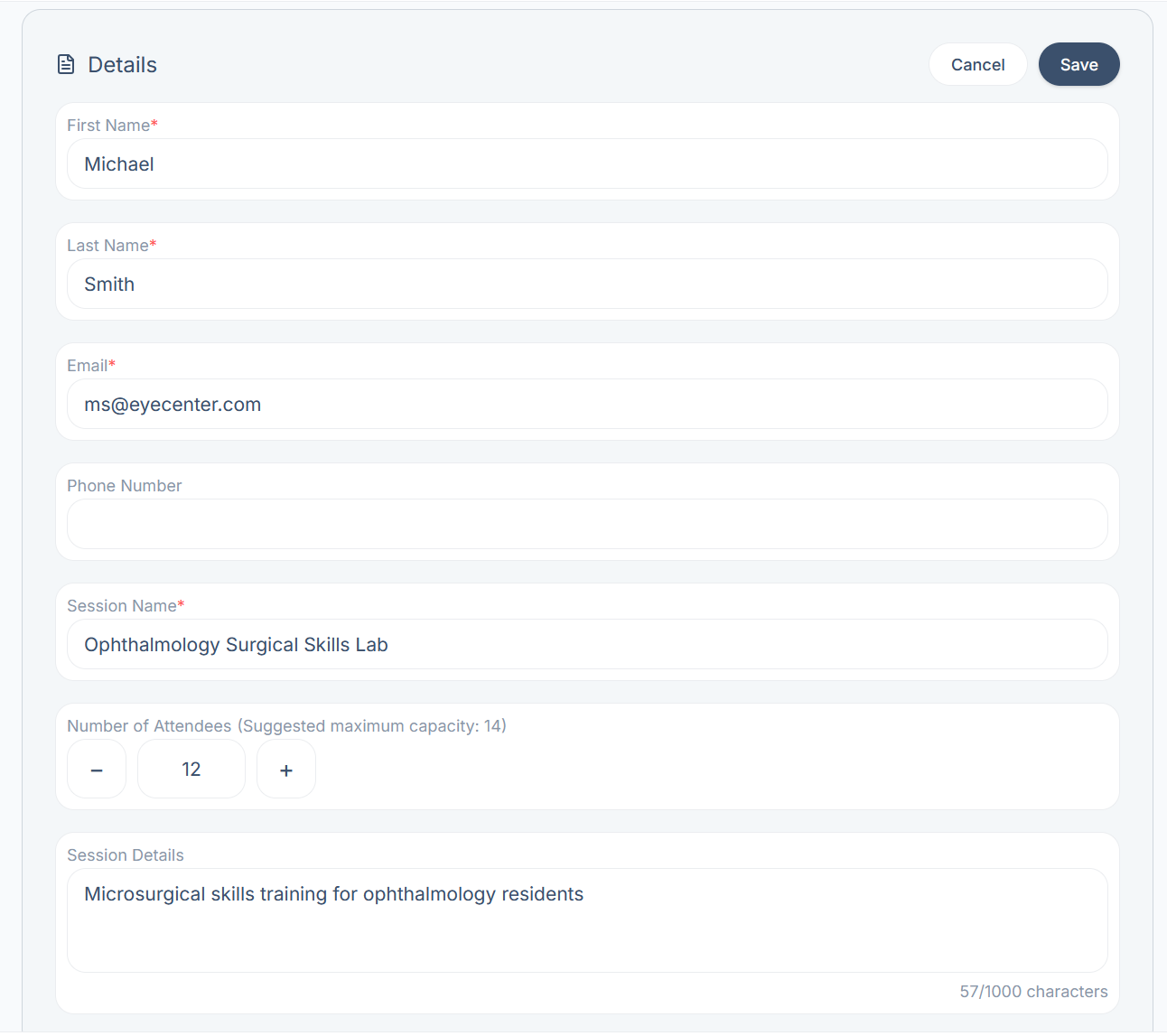
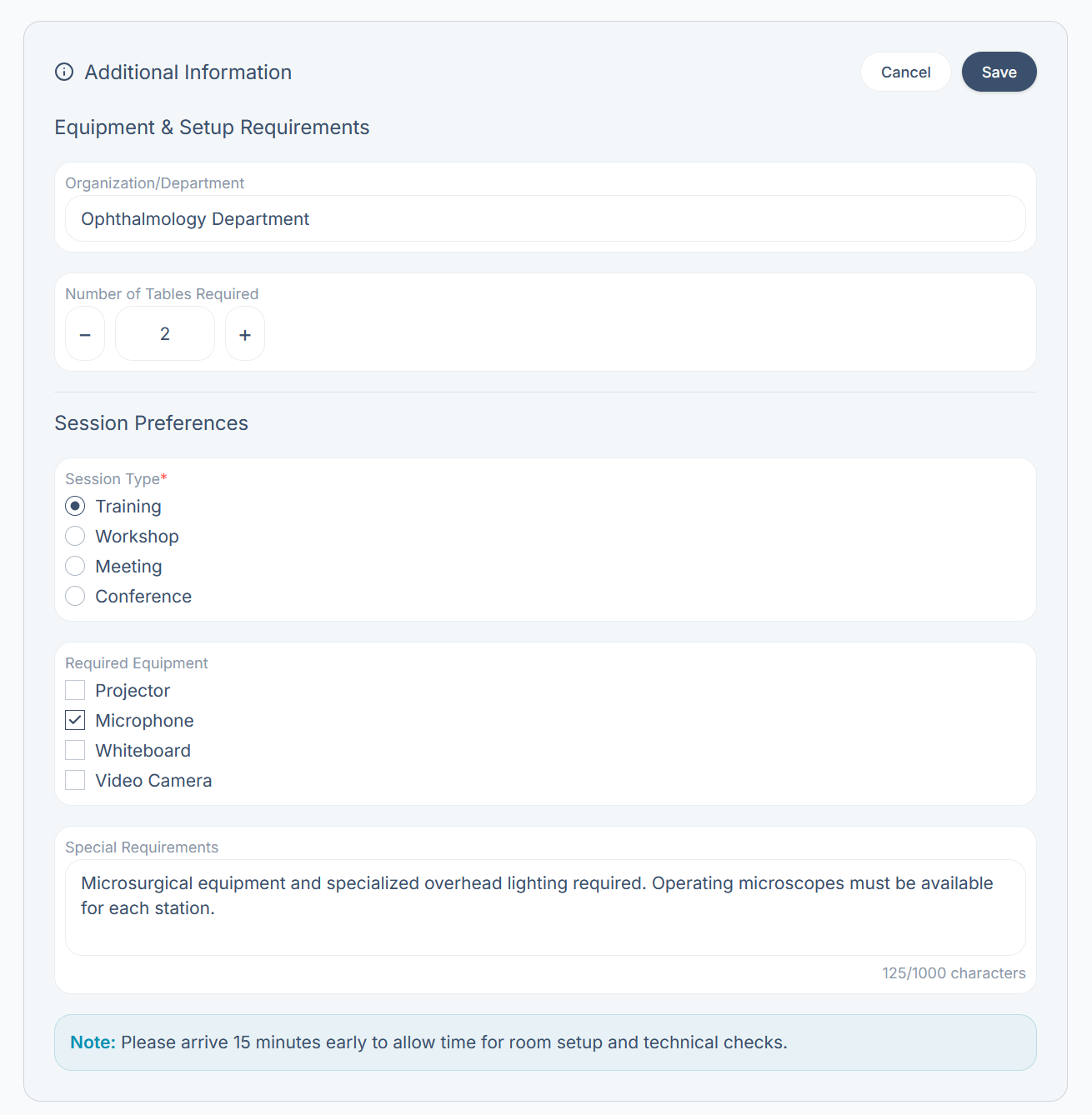
The Details and Additional Information cards have a pencil icon in their top-right corner. Select it to edit that card in place, then Save to keep your changes or Cancel to discard them. Booking information (the date, rooms, and times) can only be changed by your centre's staff, so contact them if it needs updating.
- Details: update your contact information, the session name, attendee count, and session details.
- Additional Information: update your answers to your centre's custom questions.
My Notifications
My Notifications collects every update on your bookings, including booking status changes, attachments, and edits, with the newest first. Each entry shows who did what, when, and which session it relates to.
- Show unread only (top left) hides notifications you've already read.
- Mark All As Read (top right) clears the unread badge in one click.
- The eye icon marks a single notification as read.
- The bin icon deletes a notification.
- The › arrow opens the related booking request.